 Ordinary Forge Studio
Swapback 1.2.5: The One-Key Mac App Switcher Gets Themes
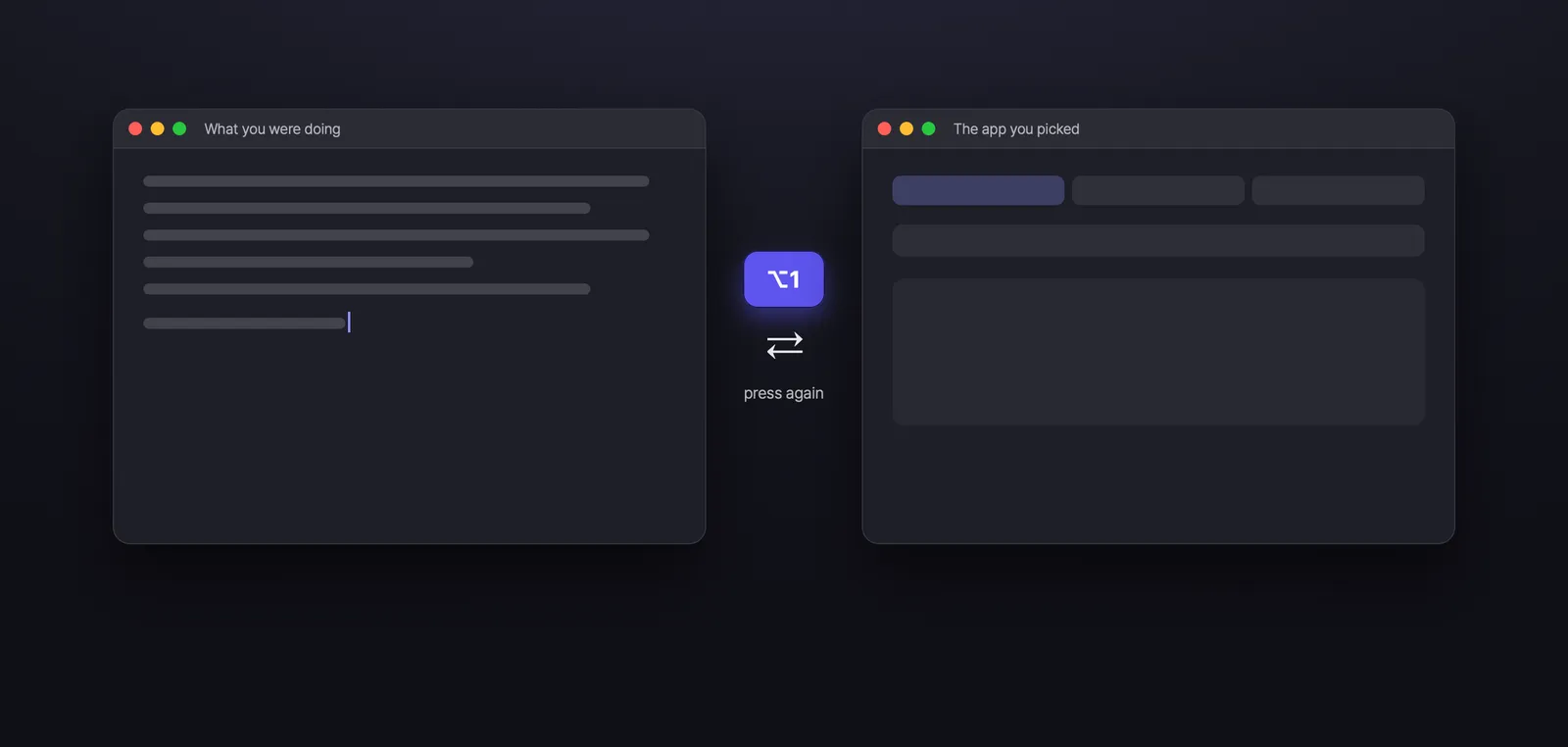
Swapback is a small Mac menu bar app that moves you between the apps you use most with one hotkey: press Option-1 to jump to the app you assigned, and press Option-1 again to land back in the app you just left. I'm the solo developer who makes it, and this post covers what changed in versions 1.2.4 and 1.2.5 — plus a quick tour for anyone who hasn't tried it yet.
What Swapback does, in one minute
I built Swapback because I spent my days bouncing between an editor and a browser, counting ⌘Tab presses. ⌘Tab goes by whatever you used last. Swapback goes to the app you picked, and the same key brings you back.
- One key, both ways. Drag an app or folder into Settings and pick a key. Press it to go there; press it again to come back.
- Hold ⌥ when you forget. Hold the Option key for a moment and your apps appear in the middle of the screen as a dial or a carousel. Let go and it disappears.
- Sites by name. Press Option-0, type a name you saved, and Safari goes there. If that tab is already open, Swapback switches to it instead of opening a duplicate. Option-Space bounces between your last two Safari tabs.
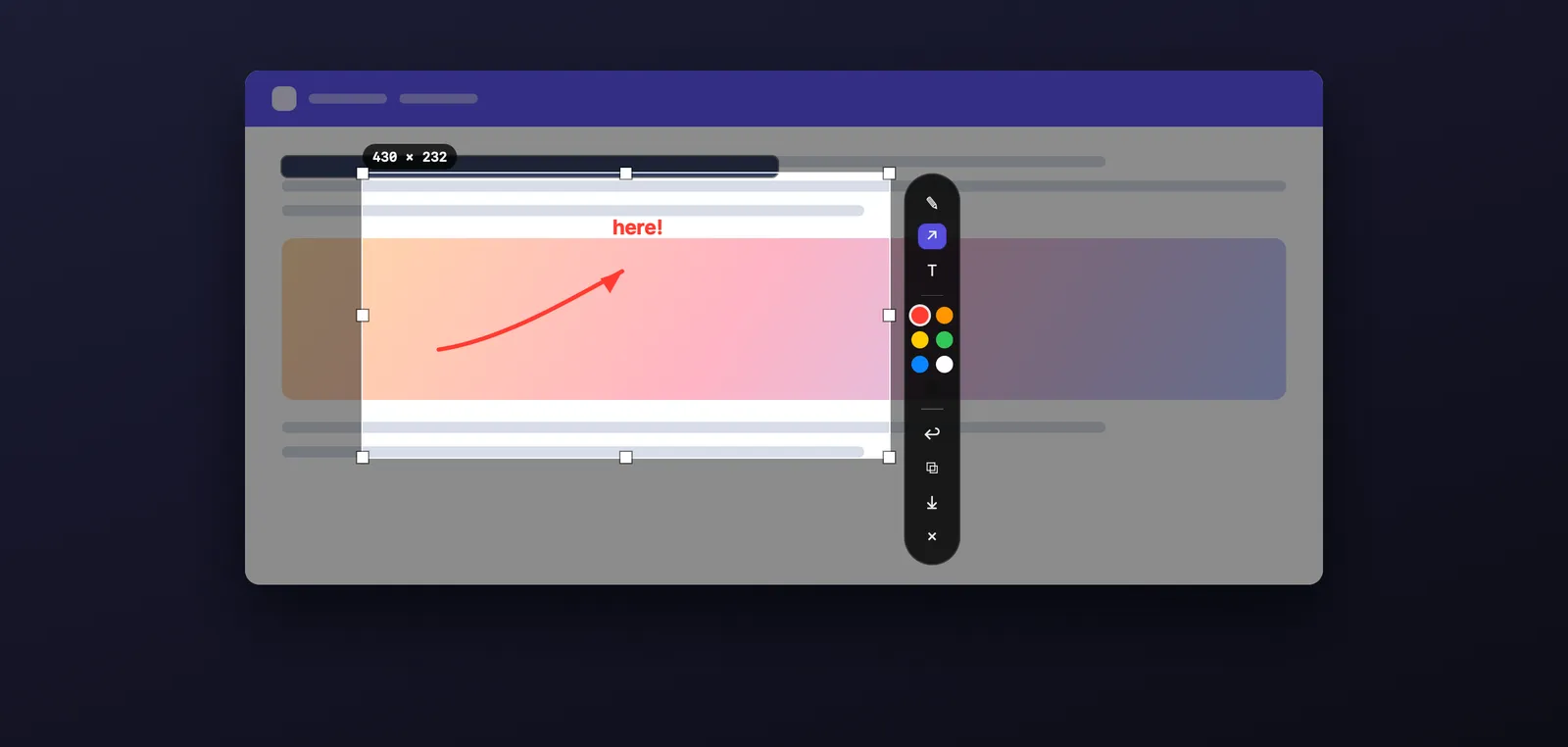
- Screenshots you can mark up in place. Press Option-Shift-S, drag an area, and add arrows, boxes and text right where you picked it. Copy it or save it as a PNG.
- Clipboard history. Option-Shift-V finds text, images and files you copied in the last 7 days. It stays on this Mac, and items marked by password managers are never stored.
Shortcuts are recognized by physical key position, so they work no matter which input source you're typing in.
New in 1.2.5: pick a theme
Earlier versions had a transparency switch in Settings › General. People told me it was hard to tell what it changed. So in 1.2.5 the switch is gone, and the top of Settings › General now shows two preview cards. You look, then click the one you like.
- Gradient — a solid, colored background, like the current Settings window.
- Glass — a blurred, see-through background. This is how Settings looked up to version 1.2.1.
One choice changes the background of Settings, the dial, the site search window, the clipboard window and the menu bar menu all at once. The separate dial background option that used to live in the app-switching settings is folded into this theme.
One condition: Glass needs macOS 26 or later. On earlier versions of macOS, Swapback uses Gradient.
New in 1.2.5: screenshots now include Swapback's own windows
Before, when you took a screenshot with Option-Shift-S, Swapback's own Settings window, clipboard window and menu bar icon were left out of the image. A user pointed out that this made it awkward to share a screenshot explaining a setting — the very window you wanted to show was missing.
Now everything on screen is captured as you see it, except the area-selection overlay itself.
New in 1.2.4: clearer screenshot saving
If you take a lot of screenshots, 1.2.4 is the update you'll notice. It reworks the Save location setting in Settings › Screenshot.
- Pick "Ask every time" or "To a folder." The old "Ask every time" label looked like a button but did nothing when clicked. Now it's a real choice between two options. If you pick "To a folder" and then cancel the folder picker, your previous setting stays as it was.
- See where screenshots go, in one line. The description under the setting tells you the current state — either the folder screenshots save to, or that Swapback will ask each time.
- Open the folder right away. Once a folder is set, Open Folder and Change buttons appear next to it. Open Folder shows that folder in Finder, so you don't have to dig for the screenshot you just took. Change moves the save location somewhere else.
Choosing a save folder itself has been possible since 1.2.2; what's new is how you choose it, the status line, and the Open Folder button. In 1.2.5 I also fixed a layout bug where those two button labels were cut off. The labels now always show in full, and the description wraps to the next line when space runs short.
Permissions and privacy haven't changed
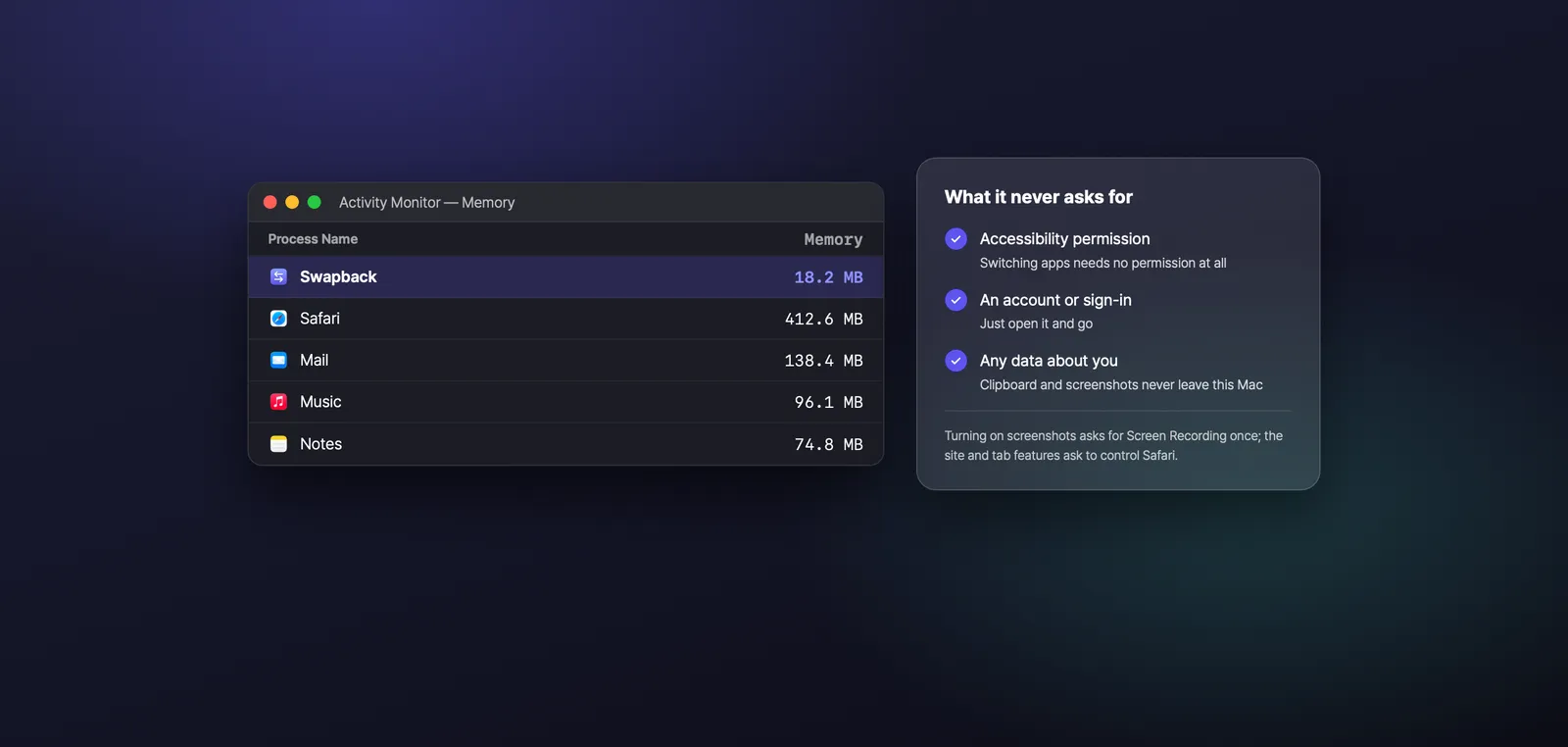
Neither update asks for new permissions or collects anything.
- Switching apps and the Hold-⌥ view need no permissions at all — no Accessibility, no Input Monitoring.
- macOS asks for Screen Recording the first time you take a screenshot, and for Safari control the first time you use sites or tabs. Say no and app switching still works.
- There's no account and no sign-in. The App Store privacy label reads "Data Not Collected."
- Clipboard history and screenshots stay on your Mac. If you use iCloud, your list of apps and sites syncs through your own iCloud account; I can't see it.
About the free period
The note in Settings › About now reads: download by December 15, 2026, and every feature released by then stays free for you. Features added later may be sold separately, with pricing shown on the App Store. An earlier version of this note said December 31; the date is now December 15, so I'm repeating it here to avoid confusion. If you already have Swapback, there's nothing you need to do.
FAQ
Which Macs does Swapback run on?
macOS 13 or later. The Glass theme needs macOS 26 or later. The app is available in English and Korean.
Does it work with Chrome?
App switching works with any app. Site jumping (Option-0) and last-tab switching (Option-Space) work with Safari only for now.
Where do I change the theme?
Settings › General › Theme. Screenshot save options are in Settings › Screenshot › Save location.
How is this different from ⌘Tab?
⌘Tab goes by recent use, so the number of presses changes. Swapback always goes to the app you assigned to that key, and the same key takes you back.
Tell me what you think
Themes are a matter of taste, so I'd especially like to hear which one you use and why. Both fixes in these updates started with a single message from a user. You can reach me at [email protected]. If Swapback saves you a few ⌘Tab presses a day, a rating on the Mac App Store helps a lot.
Mac, macOS and Safari are trademarks of Apple Inc.