 Ordinary Forge Studio
Mac Storage Full? Find What's Taking Up Space by Folder
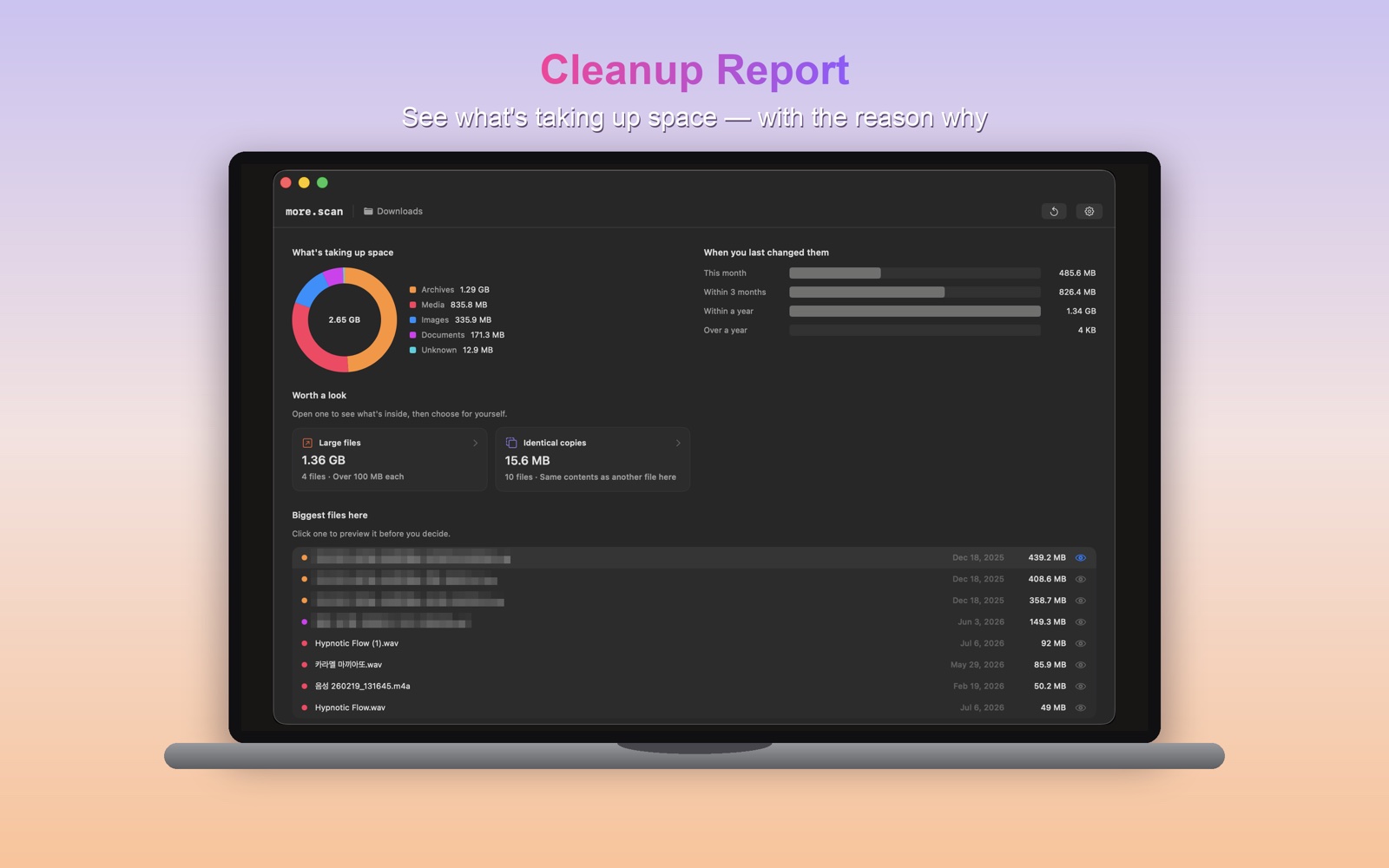
"Your disk is almost full." If you've seen that message on your Mac, the next question is always the same: what's actually taking up the space? more.scan is a free Mac app I made to answer that question one folder at a time. You drop in a folder — Downloads, Desktop, a project folder — and it shows what's inside by kind: large files, screenshots, installers, build leftovers, duplicates. You review, then move what you don't need to the Trash. I'm the developer, so take this as a maker's guide, not a neutral review.
Start with what macOS already gives you
Before installing anything, it's worth opening System Settings › General › Storage. macOS shows a colored bar of what's using your disk and offers a few built-in recommendations. For a quick overview, that's a good first stop.
What it doesn't do well is answer "what's in this folder, and which of these files can go?" That's usually where the space hides on a working Mac: a Downloads folder full of old installers, a Desktop covered in screenshots, a project folder with build output you forgot about. That's the gap more.scan is built for.
How more.scan works: scan, review, purge
1. Scan — drop a folder. Pick Downloads, Desktop or a project folder. more.scan reads only the folder you choose, nothing else on your Mac.
2. Review — see it by kind. Files are grouped and sorted by size or age. Click one to preview it with Quick Look before you decide.
3. Purge — clean up safely. The files you choose are moved to the Trash, not erased, so you can still get them back until you empty it.
What it looks for
When you scan a folder, more.scan sorts what it finds into groups:
- Large files — anything over 100 MB, biggest first
- Screenshots and screen recordings
- Installers — the disk images and packages left behind after you installed something
- Archives — zip files and the like
- Build leftovers — output that development tools create and can recreate
- Temporary files
- Duplicates — files that look like copies of each other
- Untouched for a month — files you haven't opened in a while
In my own folders, the biggest wins usually come from the first three groups: one forgotten video, a pile of installers in Downloads, months of screenshots on the Desktop.
A label on every group — and why you still decide
Each group gets one of three labels:
- Safe to Delete — caches and leftovers that are normally recreated when needed.
- Review Needed — worth a look first. Open one to see what's inside.
- High Risk — files you may want to keep. more.scan warns you to review them carefully.
These labels are a starting point, not a verdict. A file name or type can't tell the app what a file means to you, so nothing is moved until you choose it. A few habits I recommend:
- Preview before you purge. Quick Look is one click away, so use it — especially for anything in Review Needed or High Risk.
- Treat duplicates as "possible." Open both copies and keep the one you want before removing the other.
- Be careful with iCloud Drive. If you scan a folder that syncs with iCloud Drive, moving a file to the Trash removes it from your other devices too. Back up first if you're unsure.
- Empty the Trash yourself, later. more.scan never empties it for you. Leaving files there for a few days is a cheap safety net.
Only the folder you choose
more.scan reads only the folder you drop in — nothing else on your Mac — and your files never leave your computer. There's no account to create.
The flip side is a real limit worth knowing: because it only sees folders you hand it, more.scan won't explain macOS's own "System Data" or scan your whole drive in one go. If you want a full-disk map, the Storage page in System Settings is the better place to look. If you want to clean up the folders you actually work in, that's what more.scan is for.
FAQ
Is more.scan free?
Yes, it's free to download from the Mac App Store.
Does it delete files permanently?
No. Files you choose are moved to the Trash, not erased. You can put them back from the Trash until you empty it.
Can it scan my whole Mac at once?
No. It scans the folder you choose. You can scan one folder, then another — Downloads and Desktop are good places to start.
Does it upload my files anywhere?
No. more.scan reads the folder on your Mac, and your files never leave your computer.
Try it on your Downloads folder
If your Mac is running out of space, try one scan of your Downloads folder. It takes a minute to see what's been piling up there, and you stay in control of every file that moves. I'd love to hear what you found and what you wish it could do — write to [email protected].
Mac, macOS, iCloud and Quick Look are trademarks of Apple Inc.